

Implement DMARC
What is DMARC?
Section titled “What is DMARC?”DMARC (Domain-based Message Authentication, Reporting & Conformance) is an email authentication protocol that protects your domain from spoofing, phishing, and unauthorized use. It builds on SPF and DKIM, the DNS records you set up when adding a domain on Waypoint.
Why does it matter?
Section titled “Why does it matter?”A DMARC policy:
- Improves deliverability by signaling to mail providers that your emails are legitimate.
- Protects your domain from spoofing and abuse.
- Gives you visibility into how your domain is used through DMARC reports.
How to setup a DMARC policy
Section titled “How to setup a DMARC policy”Step 1: Ensure SPF and DKIM are set up
Section titled “Step 1: Ensure SPF and DKIM are set up”When you add a verified domain, Waypoint walks you through the DNS records needed to pass SPF alignment and DKIM checks.
Once those are verified, you can layer on a DMARC policy to fully authenticate your emails and boost deliverability.
Step 2: Create your DMARC record
Section titled “Step 2: Create your DMARC record”Adding a DMARC policy means creating a TXT record in your domain’s DNS settings.
Example:
| Name | Type | Value |
|---|---|---|
| _dmarc.example.com | TXT | ”v=DMARC1; p=none; rua=mailto:my_dmarc_report@example.com” |
| Parameter | Description |
|---|---|
v=DMARC1 | Indicates the version. |
p=none | quarantine | reject | What to do with failing mail |
rua=mailto:... | Where to send daily aggregate reports |
Step 3: Monitor and adjust
Section titled “Step 3: Monitor and adjust”Once published, your emails are fully authenticated and the DMARC check should pass.
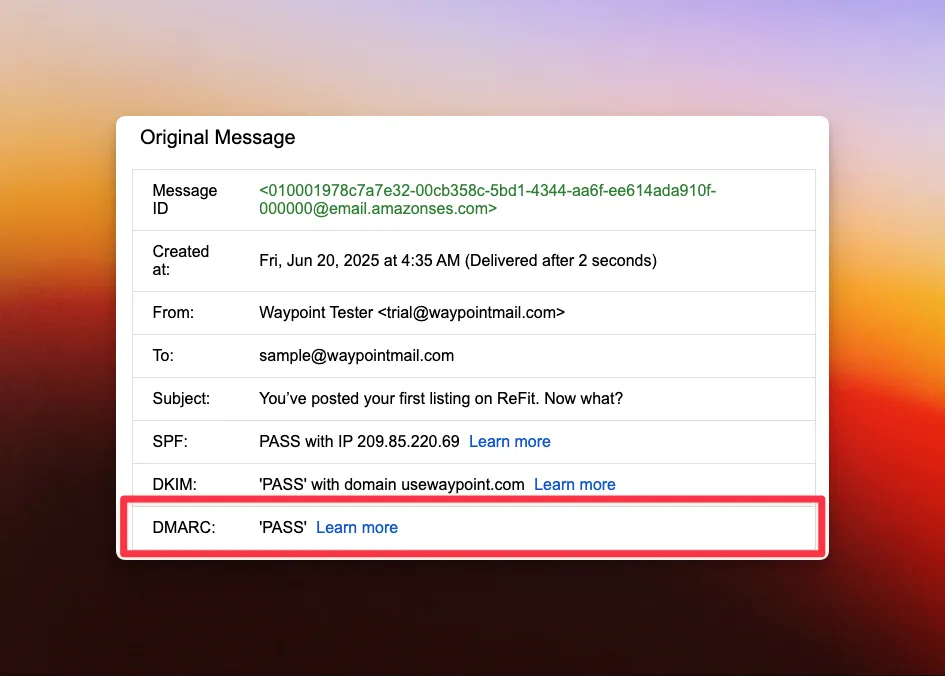
Example of an email sent through Waypoint with DMARC verified on Gmail.
Next steps:
- Watch the reports sent to your
ruaaddress. - Make sure every legitimate email source passes SPF or DKIM.
- Tighten your policy gradually:
- Start with
p=none. - Move to
p=quarantineto filter suspicious emails. - Consider
p=rejectto block unauthenticated messages.
- Start with