

Using delays
Delays pause a workflow for a set amount of time before moving on. They’re useful for things like sending follow-up tips a few days after a user first tries a feature.
Setting up a delay
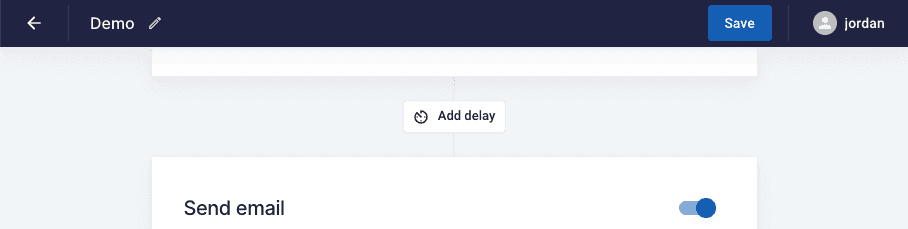
Section titled “Setting up a delay”Click ‘Add delay’ and pick a duration.
Viewing a delay
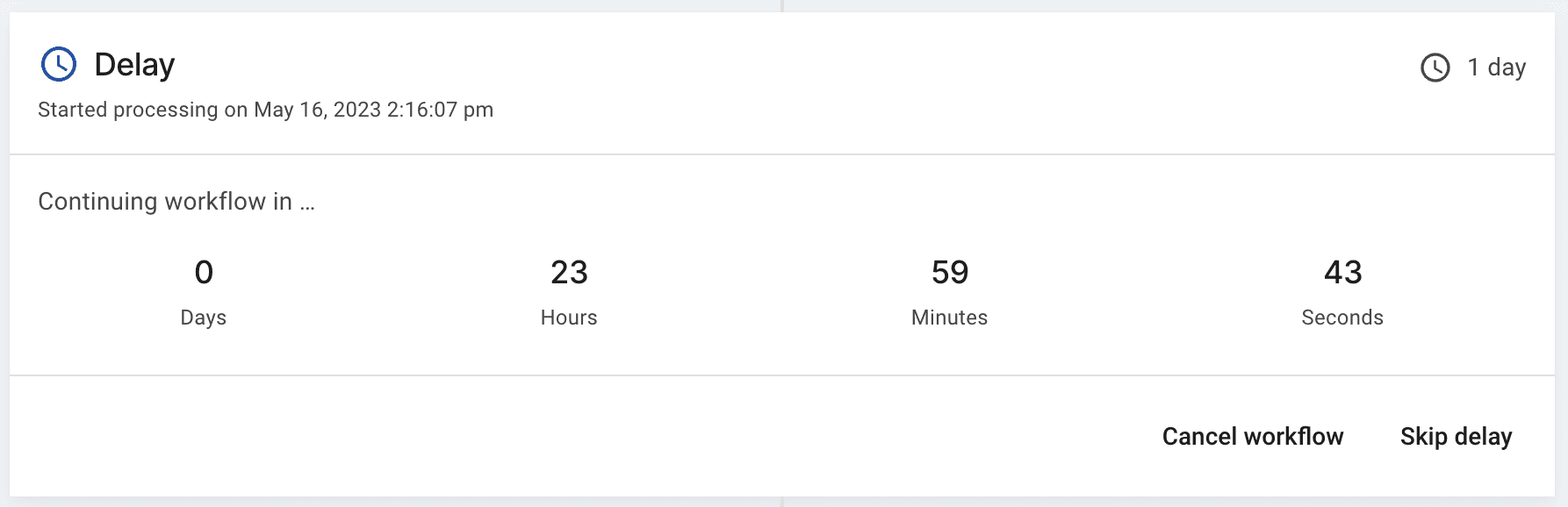
Section titled “Viewing a delay”Once the workflow is triggered, you’ll see the delay tick down in the workflow run.
Skipping a delay
Section titled “Skipping a delay”Open the workflow run from your activity page and click ‘Skip delay’ to fast-forward and continue to the next step.